[+] Wayc0de's Blog[+]

Tampilkan postingan dengan label Tips and trik. Tampilkan semua postingan

13/03/14

How to Use Edward Snowden’s Three Tips for Digital Privacy

Former NSA contractor Edward Snowden says he has been able to outfox U.S. officials using encryption. During a webcast on NSA leaks and data security at the South by Southwest conference in Austin, Texas, Snowden shared some privacy tips for the rest of us: Encrypt your hard drive, use plug-ins for your browser that prevent organizations or companies from tracking you online, and cover your tracks with Tor, an online network that promises anonymity.
These tips range from simple to complicated depending on your computer savvy, so we’ve collected some basic info and guides to help you get started:
Encrypt your hard drive
Encryption is the “Defense Against the Dark Arts” for the digital world, said Snowden, referencing the class Harry Potter took during his Hogwarts years.
Adding password protection to files on your computer is just the first step to personal file security. Encrypting the entire hard disk on your computer ensures personal information is secure, even if your device is stolen or seized.
Newer versions of Windows and Mac operating systems come with built-in disk encryption tools. BitLocker, which encrypts your entire hard drive, comes as part of Windows 7 Ultimate and Enterprise versions, and Windows 8.1 Pro and Enterprise editionsAppleoffer detailed tutorials online on how disk encryption services can be turned on. For those with older operating systems, TrueCrypt, there’s a free program for encrypting your drive. Here’s a guide on how to download and install it.
The Electronic Frontier Foundation, an organization that works on digital rights issues, has a guide to how encryption can help in different situations.
Use browser plug-ins to avoid being tracked onlineThe Wall Street Journal’s series ‘What They Know‘ showed companies are using digital tracking for online activities such as shopping, varying prices based on shopping patterns and location information. While that may seem harmless, it’s important to know that if retailers can see you, it’s likely that others can as well.
Slowly, companies such as Google have agreed to support a do-not-track button to be embedded in most Web browsers. Google’s Chrome browser has a setting that most users can turn on to send a do-not-track request, and so does Microsoft’s Internet Explorer 10. They won’t work with all websites, but it’s a good place to begin.
Plug-ins or small software extensions available for browsers are another way to go about it. Ghostery, a plug-in available for most popular browsers, when installed will show the number of trackers detected but not automatically block them. Users have the choice to individually or in bulk block these trackers.
You can also choose sites, such as the search engine DuckDuckGo, which do not record or share your searches.
Cover your tracks with Tor Over the last few months, Tor, a network that promises anonymity and privacy online has come under the spotlight. Tor hosts a network of websites, some of which have been under the scanner of law enforcement officials for illegal activities. Late last year, the Federal Bureau of Investigation shut down Silk Road, a marketplace available only through the Tor network, for the sale of illegal drugs.
Tor may be useful for criminals, but its cloak of anonymity is increasingly a comfort to anyone looking for privacy. Tor offers its own browser that can be used to connect to news sites or instant messaging services and chat rooms that can’t be easily tracked online.
To get started on the Tor network, take the advice of the ExtremeTech blog, and download the Tor Browser Bundle available for Windows, Mac and Linux. It’s similar to using the Firefox or Chrome browser but slower, because Internet traffic is routed through a series of proxies to mask its origin.
Other ways to lower your online profile include using encrypted chat services such as SilentCircle, and encrypted mail such as Hushmail. There are even smartphones coming out soon that will offer a suite of privacy features baked right in.

Read More...

26/10/11

How to enable the Windows 7 administrator account


A number of Windows 7 users have contacted me about why they cannot access certain files and folders – asking me why they don’t appear to have the permission to delete files and folders is an example. The reason for this is very simple. You don’t have administrator access (which isn’t default on Windows 7 or Vista) as Windows 7 runs most apps with least privilege access (non-admin).

You can enable the true or hidden administrator account access by doing the following elevated command prompt: WARNING – THIS DISABLES THE UAC- read more about Managing your Windows 7 User Account Control (UAC).
  • Type ‘cmd’ without the quotes into the Start search programs and files box – you should now see ‘cmd’
  • Right click ‘cmd’ with your mouse and select ‘Run as Administrator’ – you should now see the command console window
  • Type the following command ‘net user administrator / active:yes’ (with spaces but without the quotes) and then press Enter*
  • Type ‘net user administrator’ (with spaces but without the quotes) and then press Enter (see next bullet)
  • You can check whether the Administrator account is active ‘Account active’ should say ‘Yes’
  • Close the ‘cmd’ window by typing ‘exit’ then hit Enter
  • You will now need to log off your PC for the change to be applied.
*This allows you to run Windows 7 with Administrator privileges as default.
Once you’ve finished editing files and folders I’d suggest:
  • You open the command prompt by typing ‘cmd’ into the Start search program and files box (as above)
  • Disable the Administrator account using the following command: ‘net user administrator / active:no’ (with spaces but without the quotes)
  • Type ‘net user administrator’ (with spaces but without the quotes) and then press Enter (see next bullet)
  • You can check whether the Administrator account is active ‘Account active’ should say ‘No’
  • Close the ‘cmd’ console window by typing ‘exit’ then hit Enter
  • You will now need to log off your PC for the change to be applied.
Note: Don’t forget you can also set Windows 7 privileges for individual applications.
Read More...

Membuat psyBNC via shell

Askum n salam sejahtera untuk kita semua Hi

kali ini ane akan membuat tutor ttg membuat psyBNC

CEKIDOT !!!

1. siapin shell untuk pembuatan psyBNC, n langsung download file psyBNCnya


Code:
wget http://buto.webs.com/butopsy.tar.gz

kalau sukses akan keluar pesan seperti ini

Code:
--2011-10-25 08:47:54-- http://buto.webs.com/butopsy.tar.gz Resolving buto.webs.com... 216.52.115.51 Connecting to buto.webs.com|216.52.115.51|:80... connected. HTTP request sent, awaiting response... 200 OK Length: 142174 (139K) [application/x-tar] Saving to: `butopsy.tar.gz' 0K .......... .......... .......... .......... .......... 36% 254K 0s 50K .......... .......... .......... .......... .......... 72% 377K 0s 100K .......... .......... .......... ........ 100% 298K=0.5s 2011-10-25 08:47:55 (302 KB/s) - `butopsy.tar.gz' saved [142174/142174]


[Image: psy1.png]

2. extrak file psyBNCnya

Code:
tar -zxvf butopsy.tar.gz


[Image: psy2.png]

3. klik dir components, terus dan tulis script dibawah ini

Code:
./config 1999

angka 1999 adalah port yang bisa diisi terserah saudara


[Image: psy5.png]

jika sukses maka keluar pesan seperti ini

Code:
PSYBNC.SYSTEM.PORT1=1999 PSYBNC.SYSTEM.HOST1=* PSYBNC.HOSTALLOWS.ENTRY0=*;*

4. selanjutnya kita jalankan dengan mengetik script dibawah ini

Code:
./run


[Image: psy7.png]

5. next kita buka MIRC dan ketikkan script dibawah ini

Code:
/s [hostname] [port psyBNC]

catatan : hostname diisi mengikuti IP shell kita


[Image: psy8.png]

6. terus kita masukkan password untuk psyBNC kita

Code:
/QUOTE PASS password

catatan : script tergantung dari command psyBNC sendiri


[Image: psy9.png]

7. menambahkan server kepada psyBNC kita

Code:
/addserver irc.*****.org:6667


[Image: psy11.png]

jika sukses maka akan seperti gambar dibawah ini


[Image: psy12.png]

8. dan pada akhirnya nick kita akan terus join 24 jam penuh dalam seminggu (itupun kalau shellnya or file psyBNC tidak dihapus)

sekian tutor pembuatan psyBNC via shell dari ane

akhir kata wassalam Bigsmile
Read More...

21/10/11

Metasploit 4.1 And Armitage: What's New? [video]


Description: This video shows some of the new features in Armitage for Metasploit 4.1. You'll see improved tab management features, more exploit feedback, VNC, brute forcing, token stealing, and an export data feature to aid reporting. You can learn more about Armitage at rel="nofollow">http://www.fastandeasyhacking.com/
Read More...

11/10/11

Panduan Lengkap Menginstal Ubuntu 10.10 Maverick Meerkat


ubuntu1010installation large 013 Panduan Lengkap Menginstal Ubuntu 10.10 Maverick Meerkat

Ubuntu – Telah kita ketahui bahwa pada 10 Oktober lalu Canonical secara resmi meluncurkan sistem operasi terbaru mereka Ubuntu 10.10 Maverick Meerkat.

Update dan fitur-fitur baru telah disertakan bersamanya. Installer yang telah diperbarui, penggantian default font dengan font baru yang dikenal dengan Ubuntu Font Familly, pembaruan dan penyempurnaan Unity pada Ubuntu 10.10 netbook remix merupakan sedikit contoh fitur yang disertakan pada rilis Maverick Meerkat tersebut.

Tutorial berikut ditujukan bagi mereka yang baru mengenal atau ingin mengenal dan mencoba merasakan Ubuntu 10.10 sebagai sistem pada komputer yang digunakan atau bahkan bagi mereka yang belum pernah menginstal Ubuntu sebelumnya.

Hal-hal yang perlu Anda persiapkan sebelum proses instalasi adalah memastikan bahwa komputer yang akan digunakan dapat melakukan booting dari CD/DVD drive. Hidupkan komputer Anda lalu tekan F8, F11 atau tombol F12 (bergantung pada BIOS Anda) untuk mengatur CD/DVD-ROM sebagai media booting pertama kali.


Anda juga memerlukan sebuah CD/DVD installer Ubuntu 10.10 yang sesuai dengan arsitektur yang digunakan (i386 atau amd64), jika belum memilikinya, Anda dapat mendownload terlebih dahulu melalui link download Ubuntu 10.10 yang kami sediakan pada artikel ini. Setelah installer berhasil di-download, silahkan bakar file ISO yang didapatkan dengan aplikasi pembakar CD/DVD seperti Nero, CDBurnerXP, Roxio atau aplikasi lain yang Anda sukai pada CD kosong dengan kecepatan 8x.


Bagi Anda yang baru pertama kali mengenal Linux dan ingin menginstal sendiri Ubuntu 10.10 sebagai pembelajaran, kami sangat menyarankan Anda melakukannya pada komputer dengan hardisk kosong yang tak ada data atau sistem lain di dalamnya, sebab kesalahan atau kegagalan selama proses instalasi dapat menyebabkan semua data atau sistem yang telah ada akan hilang/terhapus dan tidak akan pernah bisa dikembalikan lagi!!!.

Setelah semua perangkat yang dibutuhkan siap dan Anda telah memahami risiko yang mungkin terjadi jika ada kesalahan, langsung saja kita mulai peroses instalasi Ubuntu 10.10 Maverick Meerkat.

Masukkan CD/DVD installer Ubuntu 10.10 kedalam CD/DVD drive lalu restart komputer Anda. Tunggulah beberapa saat hingga installer Ubuntu selesai diload…

ubuntu1004installation large 000 Panduan Lengkap Menginstal Ubuntu 10.10 Maverick Meerkat
 
Tak lama kemudian anda akan disodori sebuah wizard instalasi. Silahkan pilih bahasa yang ingin Anda gunakan lalu klik tombol “Install Ubuntu” untuk melanjutkan…

Catatan: Bagi Anda yang belum ingin mengistal Ubuntu 10.10 namun ingin mencoba merasakan sistem operasi ini, klik tombol “Try Ubuntu” untuk menjalankan Ubuntu 10.10 sebagai Live CD.

ubuntu1010installation large 001 Panduan Lengkap Menginstal Ubuntu 10.10 Maverick Meerkat
 
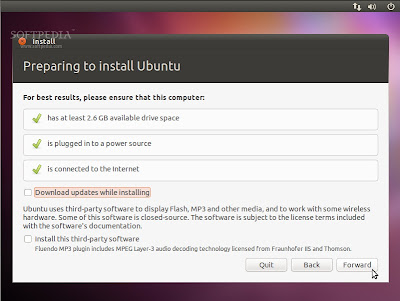
Persiapan menginstal Ubuntu.

Pastikan Anda memiliki semua persyaratan minimal yang dibutuhkan. Sebagai pilihan, Anda dapat men-download pembaruan saat proses instalasi dan/atau menginstal software pihak ketiga, seperti dukungan MP3, hanya dapat dilakukan jika Anda memiliki koneksi internet saat instalasi. Perlu diketahui, kalau semua pilihan itu di aktifkan maka proses instalasi akan memerlukan waktu yang lebih lama.
ubuntu1010installation large 002 Panduan Lengkap Menginstal Ubuntu 10.10 Maverick Meerkat
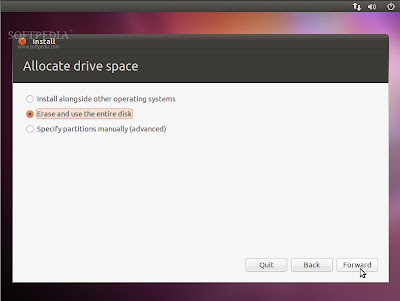
Mengalokasikan drive space

Pada layar ini Anda memiliki tiga pilihan:

ubuntu1010installation large 004 Panduan Lengkap Menginstal Ubuntu 10.10 Maverick Meerkat
 
1. Install alongside other operating systems – Instal bersama sistem operasi lain
Pilih opsi ini HANYA jika Anda memiliki OS lain (misalnya Windows XP) telah terinstal pada komputer dan Anda ingin sistem dual boot. (Tidak kami sarankan bagi Anda yang belum pernah sama sekali melakukan instalasi sistem operasi Linux)

Catatan: Ingat bahwa, setelah proses instalasi, boot loader Windows akan ditimpa oleh boot loader Ubuntu!!!.

2. Erase and use the entire disk – Menghapus dan menggunakan seluruh hardisk
Pilih opsi ini jika Anda ingin menghapus sistem operasi yang telah ada atau hardisk masih kosong dan Anda ingin membiarkan installer secara otomatis mempartisi hardisk. Ini adalah opsi yang disarankan untuk semua pengguna, khususnya bagi mereka yang ingin sistem operasi tunggal pada komputernya.

3. Specify partitions manually (advanced) – Menentukan partisi secara manual (untuk tingkat mahir).

Pilihan ini direkomendasikan HANYA untuk pengguna tingkat lanjut untuk membuat partisi khusus atau memformat hardisk dengan file system lain dari yang telah ditentukan. Cara ini juga dapat digunakan untuk membuat partisi /home secara terpisah yang sangat berguna jika kelak Anda menginstal ulang seluruh sistem.

Berikut adalah cara mempartisi manual:
  • Pilih “Specify partitions manually (advanced)” lalu klik tombol “Forward”;

  • Pastikan bahwa hardisk yang dipilih telah benar. “/dev/sda” adalah hardisk pertama. “/dev/sdb” adalah hardisk kedua pada komputer Anda. Jadi, pastikan bahwa Anda tahu mana yang ingin Anda format! Jika tidak, Anda akan kehilangan SEMUA DATA yang ada didalamnya!!!;

  • Kami asumsikan hardisk yang Anda pilih adalah kosong (tidak ada sistem operasi lain atau data penting didalamnya) tetapi telah memiliki beberapa partisi. Pilih salah satu partisi tersebut lalu klik tombol “Delete”. Lakukan langkah ini untuk partisi lain pada hardisk yang telah dipilih hingga semua partisi dihapus dan Anda memiliki sebuah “free space” tunggal;

  • Pilih pada ruang kosong tersebut, klik tombol “Add”. Pada jendela baru, masukkan nilai 2048 dalam kotak “New partition size in megabytes” lalu pilih opsi “swap area” pada menu dropdown “Use as”. Klik tombol OK, dalam beberapa detik Anda akan melihat sebuah partisi “swap” sesuai dengan ukuran yang telah ditetapkan;

  • Pilih pada ruang kosong yang masih ada, klik tombol “Add”. Pada jendela baru, pilih opsi “Primary”, masukkan nilai antara 10.000 sampai 50.000 dalam kotak “New partition size in megabytes” lalu pilih “/” pada menu dropdown “Mount point”. Klik tombol OK, dalam beberapa detik Anda akan melihat sebuah partisi “ext4 /” sesuai dengan ukuran yang telah ditentukan;

  • Pilih pada ruang kosong yang masih ada, klik tombol “Add”. Pada jendela baru, pilih opsi “Primary”, masukkan nilai antara 30.000 sampai 50.000 (atau seberapapun sisa ruang hardisk yang masih ada) dalam kotak “New partition size in megabytes” lalu pilih “/home” pada menu dropdown “Mount point”. Klik tombol OK, dalam beberapa detik Anda akan melihat sebuah partisi “ext4 /home” sesuai dengan ukuran yang telah Anda tentukan.
ubuntu1010installation large 003 Panduan Lengkap Menginstal Ubuntu 10.10 Maverick Meerkat
 
Tabel partisi hardisk akan terlihat seperti contoh berikut ini…

ubuntu1010installation large 005 Panduan Lengkap Menginstal Ubuntu 10.10 Maverick Meerkat
 
Peringatan: Pada langkah ini, semua isi hardisk akan dihapus dan tidak dapat dikembalikan lagi…

Klik tombol “Install Now” untuk melanjutkan proses instalasi…

ubuntu1010installation large 006 Panduan Lengkap Menginstal Ubuntu 10.10 Maverick Meerkat
 
Catatan: Pada langkah ini hardisk akan dihapus lalu dipartisi, data pada CD akan disalin kedalam hardisk dan Anda dapat sedikit bersantai sambil memasukkan informasi yang diperlukan.

Where are you? – Di mana Anda berada?

Layar ini akan menampilkan peta bumi. Setelah memilih lokasi tempat tinggal Anda, waktu sistem akan disesuaikan secara otomatis. Anda dapat menentukan lokasi Anda dengan meng-klik pada peta atau cukup ketik nama kota dalam kotak dibawahnya. Klik tombol “Forward” setelah Anda menentukan lokasi yang diinginkan…

ubuntu1010installation large 007 Panduan Lengkap Menginstal Ubuntu 10.10 Maverick Meerkat

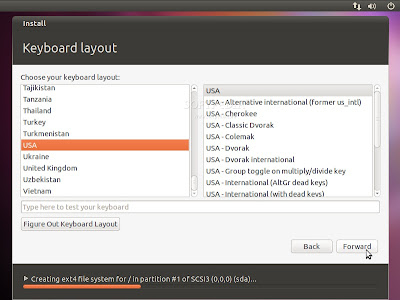
Keyboard layout.

Pada layar ini, Anda dapat memilih susunan keyboard yang diinginkan atau biarkan dalam pilihan default. Anda juga dapat mengklik tombol “Figure Out Keyboard Layout” untuk indentifikasi yang lebih baik dari layout keyboard Anda. Klik tombol “Forward” jika Anda telah selesai menentukan konfigurasi keyboard…

ubuntu1010installation large 010 Panduan Lengkap Menginstal Ubuntu 10.10 Maverick Meerkat

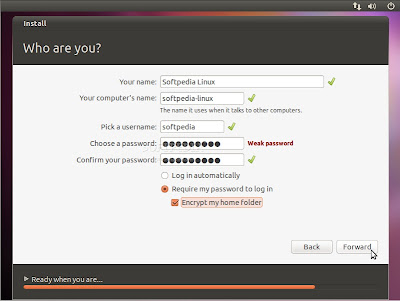
Who are you? – Siapakah Anda?

Pada layar ini, Anda harus memasukkan informasi yang sesuai. Isi kolom dengan nama asli Anda, nama komputer (secara otomatis terisi, tetapi bisa Anda ubah), nama yang Anda gunakan untuk login (disebut juga “username”, yang akan diperlukan untuk login ke sistem) dan password yang ingin Anda gunakan.

Masih pada langkah ini, ada sebuah opsi bernama “Log in automatically”. Jika Anda memilih opsi itu, Anda akan secara otomatis login ke desktop Ubuntu.

Opsi lainnya, “Encrypt my home folder”, ini akan mengenkripsi instalasi Ubuntu (jika Anda tidak tahu manfaatnya, sebaiknya jangan aktifkan opsi ini). Klik tombol “Forward” untuk melanjutkan…

ubuntu1010installation large 008 Panduan Lengkap Menginstal Ubuntu 10.10 Maverick Meerkat

Pada tahap ini Ubuntu 10.10 (Maverick Meerkat) akan diinstal…

ubuntu1010installation large 009 Panduan Lengkap Menginstal Ubuntu 10.10 Maverick Meerkat

Setelah 10 sampai 15 menit (bergantung pada spesifikasi komputer Anda), jendela pop-up akan muncul yang memberitahukan bahwa instalasi telah selesai, Anda harus me-restart komputer untuk dapat menggunakan sistem operasi Ubuntu yang baru saja diinstal. Klik tombol “Restart Now”…

ubuntu1010installation large 011 Panduan Lengkap Menginstal Ubuntu 10.10 Maverick Meerkat
 
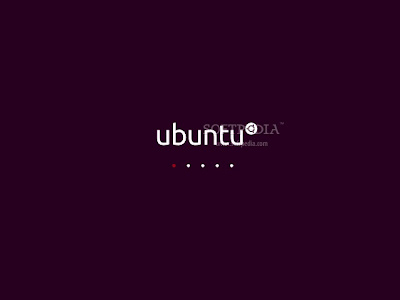
CD/DVD instalasi akan dikeluarkan, ambil CD/DVD itu lalu tekan “Enter” untuk me-reboot. Komputer akan di-restart dan dalam beberapa detik Anda akan melihat boot splash Ubuntu…

ubuntu1004installation large 000 Panduan Lengkap Menginstal Ubuntu 10.10 Maverick Meerkat
 
Pada layar login, klik username lalu masukan password Anda. Klik tombol “Log In” atau tekan Enter untuk log in…

ubuntu1010installation large 012 Panduan Lengkap Menginstal Ubuntu 10.10 Maverick Meerkat
 
Desktop Ubuntu 10.10 (Maverick Meerkat) telah siap Anda gunakan…

ubuntu1010installation large 013 Panduan Lengkap Menginstal Ubuntu 10.10 Maverick Meerkat
 
Selamat mencoba dan welcome linux…

nb : sumber
Read More...

How to access your BIOS set up

Depending on your computer model, the way you will access your BIOS set up menu will differ. Here is a list of the most common models used and the access key used for this process.

ACER

You can make use of the DEL or F2 keys after switching on your system.
When using Acer Altos 600 server, the BIOS set up can be accessed by pressing the CTRL+ALT+ESC keys.


COMPAQ

Ensure that the cursor in the upper right corner of your screen is blinking before pressing the F10 key.
Previous versions of Compaq will make use of the F1, F2, F10 or DEL keys to grant access to your BIOS set up menu. DELL

After switching on your computer, let the DELL logo appear before pressing the F2 key until Entering Setup is displayed on the screen.
Previous versions of DELL might require to press CTRL+ALT+ENTER to access the BIOS set up menu.
The DELL laptops will use the Fn+ESC or Fn+F1 keys to access the BIOS set up.


GATEWAY

When switching on your computer, press the F1 key until the BIOS screen shows up.
Previous versions of Gateway will make use of the F2 key to display the BIOS set up screen.


HEWLETT-PACKARD

When switching on your computer system, press the F1 key to access the BIOS set up screen
For those using an HP Tablet PC, you can press the F10 or F12 keys.
You can also access the BIOS set up menu by pressing the F2 or ESC keys.


IBM

When your system restarting, press the F1 key to access the BIOS set up.
Previous IBM models will require the use of the F2 key to access the BIOS set up utility.


NEC

NEC will only use the F2 key to access the BIOS set up menu


PACKARD BELL

Packard Bell users, you can access the BIOS set up by pressing the F1, F2 or DEL keys


SHARP

For the Sharp model, when your computer is loading, press the F2 key
For previous Sharp models, you will need to use a Setup Diagnostics Disk.


SONY

Sony users will have to press the F1, F2 or F3 key after switching on their computer.


TOSHIBA

The Toshiba model will require its users to press the F1 or ESC key after switching on their computer to be able to access BIOS set up menu.
Read More...

17/09/11

Massive Code Change for New DroidDreamLight Variant

We saw several key developments in the new variant of DroidDreamLight, which we were able to analyze earlier this month. This new variant, found in a China-based 3rd party application store, comes off as applications such as a battery monitoring tool, task listing tool, and an application that lists the permissions used by installed applications. Please note though that the apps are in English, so potential victims are not limited to users who understand Chinese.
For one, there were major changes in its code:


Another important update is the addition of information theft routines. Based on our analysis, this new variant can steal certain information from the device, such as:
  • SMS messages (inbox and outbox)
  • Call log (incoming and outgoing)
  • Contacts list
  • Information related to Google accounts stored in the device
Stolen information is stored and compressed in the /data/data/%package name%/files directory, and then uploaded to a URL contained in a configuration file.


Stolen information is stored and compressed in the /data/data/%package name%/files directory, and then uploaded to another URL, that is also contained in a configuration file.
Just like with previous variants, it also connects to a URL in the configuration file and then uploads other information about the infected device:
  • Phone model
  • Language setting
  • Country
  • IMEI
  • IMSI
  • SDK version
  • Package name of the malicious application
  • Information about installed applications
Once the URL receives the information, it will reply with an encrypted configuration file, which updates the existing configuration file. Below is a screenshot of its code:


Also, based on its code, this malware has the ability to insert messages in the inbox of the affected device, with the sender and message body specified by the attacker, as well as the ability to send messages to numbers in the contacts list.
Furthermore, this new variant also has codes that can check if the affected device has been rooted by checking for certain files. We found that this malware can install and uninstall packages if the device is rooted, although there is currently no code in the body that calls these methods.

Users can check their phone if they are infected by going to Settings>Applications>Running Services and look for the service called “CelebrateService”


This Android malware is now detected as AndroidOS_DORDRAE.N.

For more information on Android threats, users check our Android threats infograph as well as our ebook “5 Simple Steps to Secure Your Android-Based Smartphones.”

nb : trendmicro Read More...

SpyEye targeting Android users - just a copy of Zeus's strategy?

EyeIn the world of Windows malware, SpyEye is a widely spread malicious toolkit for creating and managing botnets designed primarily for stealing banking credentials and other confidential information from infected systems.

SpyEye is a major competitor of infamous Zeus toolkit. Zeus (also known as ZBot) generated a lot of interest in the mobile security community a couple of months ago when an Android version was discovered.

Of course, we did not have to wait for too long before a version of SpyEye targeting Android was also developed, and sure enough a malicious SpyEye Android app was discovered a few days ago.

The functionality of Zeus and SpyEye on Windows is quite similar, so I was curious as to how similar their respective Android versions would be.

Zeus for Android purports to be a version of Trusteer Rapport security software. This social engineering trick is used in an attempt to convince the user that the application they are installing is legitimate.

SpyEye for Android, now detected by Sophos products as Andr/Spitmo-A, uses a slightly different but similar social engineering technique.

When the user of a PC infected by the Windows version of SpyEye visits a targeted banking website, and when the site is using mobile transaction authorization numbers, the SpyEye Trojan may inject HTML content which will instruct the user to download and install the Android program to be used for transaction authorisation.

The SpyEye application package does not include an icon which would be displayed in the "All apps" menu, and the user will only be able to find the package when the "Manage Applications" is launched from the mobile device's settings.

The application uses the display name "System" so that it seems like a standard Android system application.

SpyEye for Android installed

When installed, Zeus for Android displayed a fake activation screen, and Spitmo is again very similar.

However, Spitmo uses different tactics to reinforce user's opinion that it is a legitimate application.

It applies for the following permissions Android permission:

<action name="android.provider.Telephony.SMS_RECEIVED" />
<action name="android.intent.action.NEW_OUTGOING_CALL" />
This allows the malware to intercept outgoing phone calls.

When a number is dialed, the call is intercepted before the connection is made and the dialed phone number is matched to a special number specified by the attacker in the alleged helper application installation instructions.

If the number matches, Spitmo displays a fake activation number, which is always 251340.

SpyEye for Android - fake activation
Once installed, the functionality of Zeus and SpyEye are pretty much the same.
A broadcast receiver intercepts all received SMS text messages and sends them to a command and control server using an HTTP POST request. The submitted information includes the sender's number and the full content of the message.

So far, it does not seem that this attack is widespread, but it shows that the developers of major malicious toolkits are closely watching their competition and matching the latest features.

It also seems that support for Android is increasingly becoming an important part of their product strategy.

nb : nakedsecurity.sophos
Read More...

15/09/11

Protect Yourself From Phishing

Most of us are familiar with the word Phishing.For those who are new to this term Phishing,i am going to first explain to you the concept of word phishing.

PHISHING:

Phishing is a technique that is used by some malicious hackers to acquire some sensitive information like Passwords,Bank Id’s and some very important login details of various accounts. This word sounds like the word “Fishing” and is quite similar to the technique of fishing,as in fishing the fisherman hooks a bait pretending to be a real food so that he can fool the fishes in the pond and as soon as the fish comes for the bait it gets hooked and gets caught.Same is the case with phishing that is used over internet by the users to trap people through fake login pages that are designed by them or are available on net.The attackers creates a fake or duplicate page of a genuine website like any social site or any bank account page,and then he will set the trap by sending a mail to the prey(user) and waits for the user to fall in that trap and as soon as the user enters his/her details they are caught i.e the login details are send to the attacker and he know has the access of their sensitive information,it may be an account of social networking site or any bank account details.

Phishing technique is basically done through Email spoofing(means sending anonymous mail) and also through instant messaging.Phishing requires social engineering skills i.e how you can pretend to be a genuine person to the user whom you want to attack.This technique has caused a lot of problem for users who are easily trapped in these types of Phishing attacks,it has caused real big damages to the user’s.

After all the problems that were caused by the Phishing attacks,came the concept of Anti-Phishing i.e how you can protect yourself from getting caught in these types of attacks.These are some simple techniques that you can easily remember and save yourself from getting attacked by the malicious users.

ANTI-PHISHING TECHNIQUES:

1.Social Awareness:

One of the important technique is to create social awareness among the people about these types of phishing techniques so that the users browsing the internet can know about these types of attacks that are being carried by some users and thus they will become more cautious while browsing.This is quite necessary because most of the users do not even know about these types of attacks and thus they can easily fell into the traps set by the malicious users.

2.Technical awareness:

Technical awareness includes the ability to identify between the fake website pages from the legit websites.If you are smart enough than you can easily differentiate between a legit and a fake website.The user can easily pick up the fake website page from the url itself,as most the urls that are used for phishing are different from the original url of a website,if you can recognize the legit page url ,than you will be easily able to differentiate between fake and legit pages.

But these days attackers have developed some new techniques through which they make the url so much complicated that it’s quite difficult to differentiate between the fake an legit site,but nowadays many browsers like internet explorer has developed a new technique in which the domain name is highlighted with black color and all other details with light brown color so that the user will be easily able to look into the domain name of the page and identify the page.

3. E-mail authentication:

This is quite an important technique if you want to save yourself from phishing.Most of the phishing technique rely on email systems i.e  the attacker will send you an email pretending to be a genuine company or a site administrator which will contain a link that will redirect you to a page that would look legit to you.Now how will you come to know that whether the email is secure or it’s fake.Some companies or websites have some special notations or signs that are not available to phishers and thus if you feel any difference in the email language then do not trust the email.There is always a contact information given in the email you can use it to authenticate the email,whether it’s legit or not.

Now most of you might be thinking that the fake Email’s are automatically send into the spam folder in your mail system,but this is not true.Today the users have developed so many new techniques that email the best email system will not be able to differentiate between the spam and regular email.So do not get fooled by this thing that fake email’s are send to the Spam folder. I am telling this you from my own personal experience and it’s 100% true.

If you follow these techniques then there is no chance of you falling in such traps.Do tell me about your views on this topic.

nb : techbugs Read More...